An app by Blewis

Kickabout

Weekly game sign-ups that sort themselves out.

One link for your weekly game. Players tap in or out, the app keeps count, and when someone drops out the next person on the reserve list is moved up and emailed. The organiser has a couple of taps a week instead of an evening of chasing.

Try the demo See how it works

What it's for

Most weekly games are run from a group chat. Someone asks who's in, the replies scroll past, and by the day of the game nobody is quite sure who's playing. A couple of people drop out late, their places go to whoever happens to see the message first, and the organiser spends the evening counting heads.

Kickabout swaps the thread for one list that everyone can see.

Try it yourself

The demo is the real app with a made-up club, Glenview Casuals. Open it and pick who to be. There are no passwords, and nothing you do there reaches anyone.

Open the demo

Or go straight in as

  • A player who's inSam is playing this week. Drop out and watch the next reserve move up.
    Try as Sam
  • A player on the reserve listJordan is first in the queue if anyone drops out.
    Try as Jordan
  • A player who hasn't repliedAli hasn't said yet. The game's full, so tapping in joins the reserve list.
    Try as Ali
  • The organiserMorag runs the game: the fixture, the players, the reserve list and each new week.
    Try as Morag
  • Try it on your phone. That's where players will use it.
  • Everyone in the demo is made up and no emails are sent. Refreshing the page starts it again.
  • Drop out as Sam, then tap your initials at the top to switch to Jordan. Jordan has taken the place.
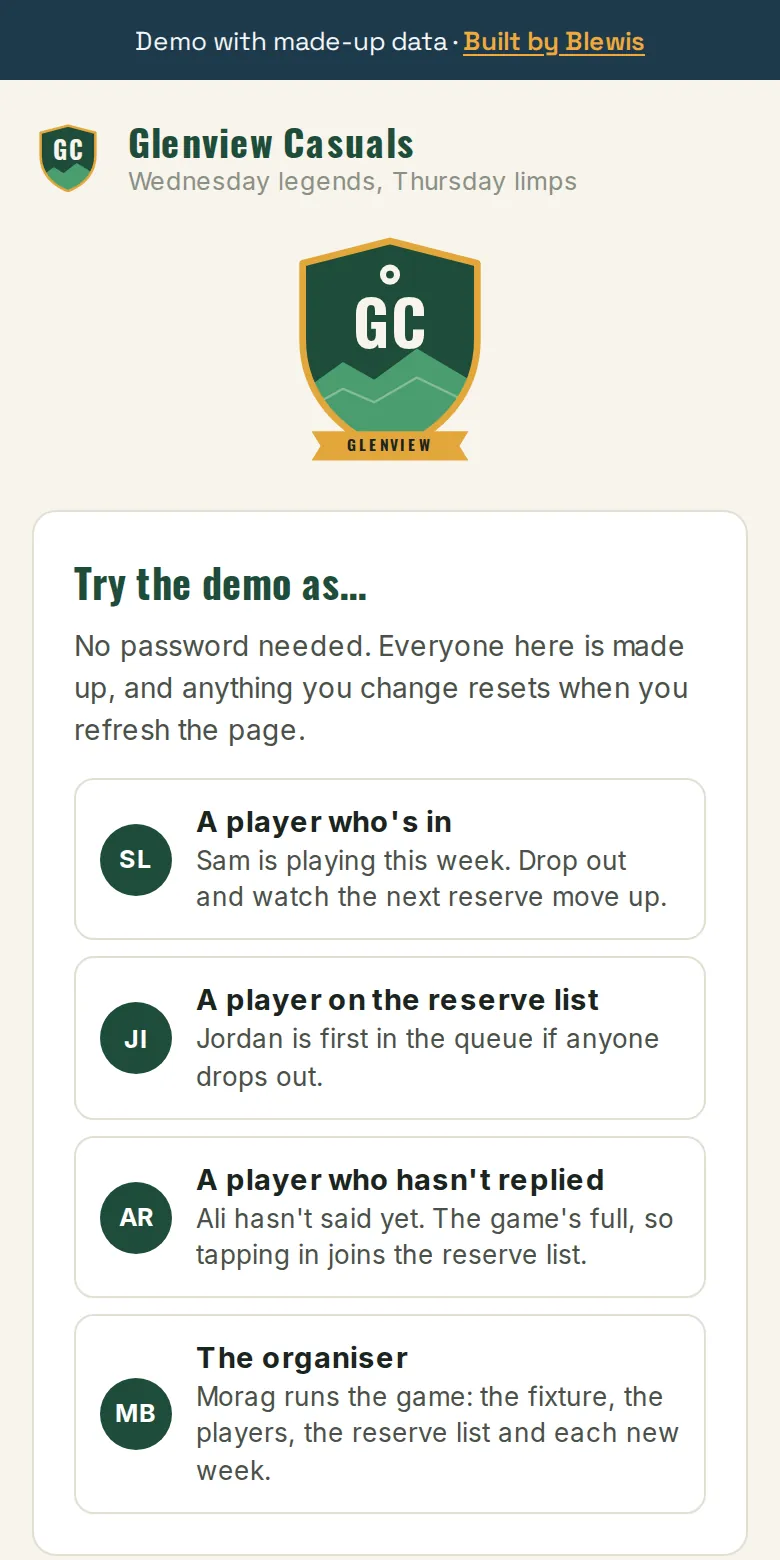
The demo's first screen on a phone: Glenview Casuals at the top, then Try the demo as… with four buttons: a player who's in, a player on the reserve list, a player who hasn't replied, and the organiser.
Pick who to beOne tap and you're in. Switch whenever you like.

The tour · players

What players see

One screen, built for a phone. Players see this week's game, who's in and where they stand.

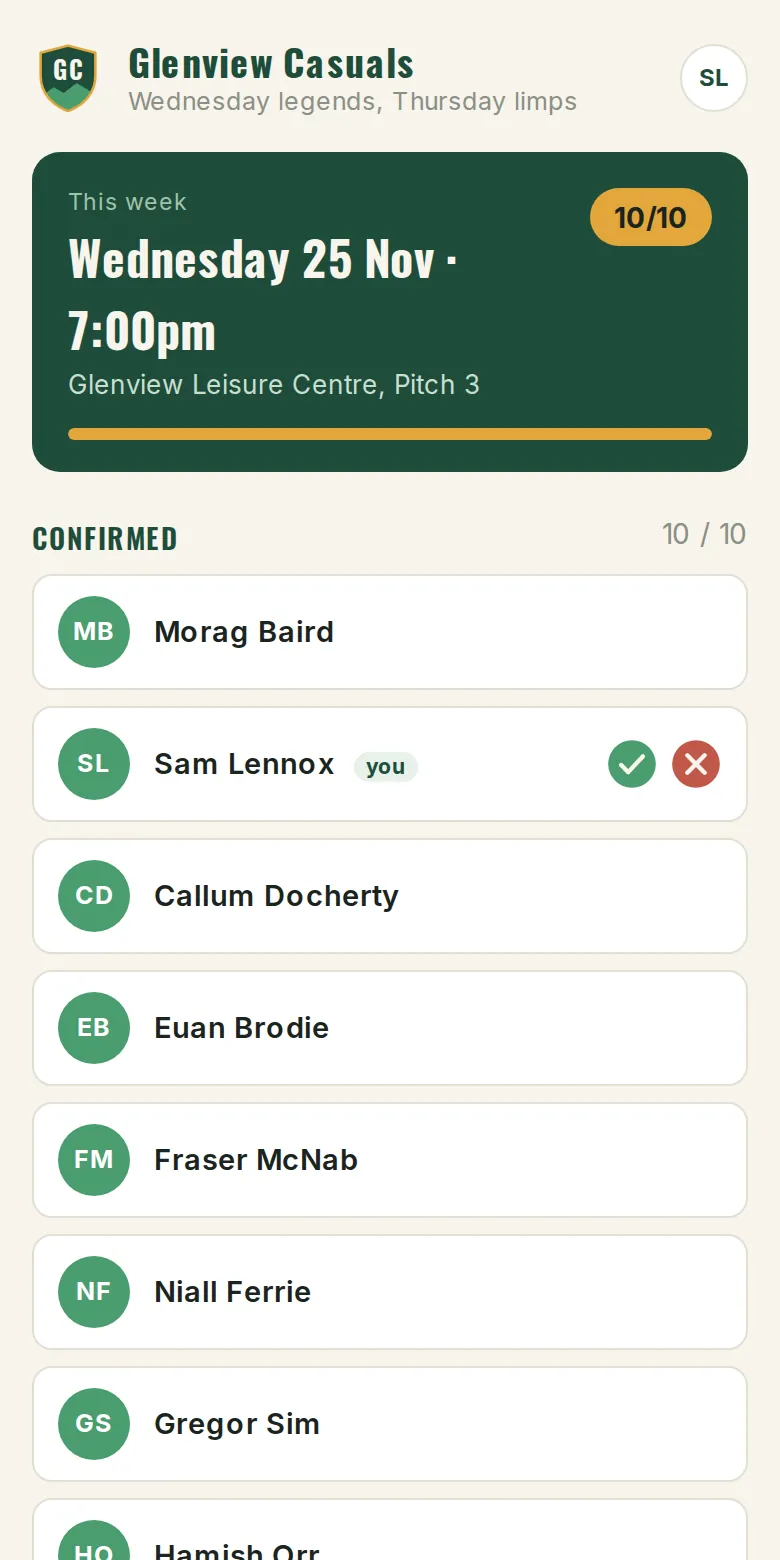
Sam's screen: this week's game with its time and place, a 10 of 10 counter and a full progress bar, then the confirmed list with Sam marked as you and in and out buttons on Sam's row.
This week's gameWhen and where, how many places are taken, and everyone who's in. Your own row has the in and out buttons.
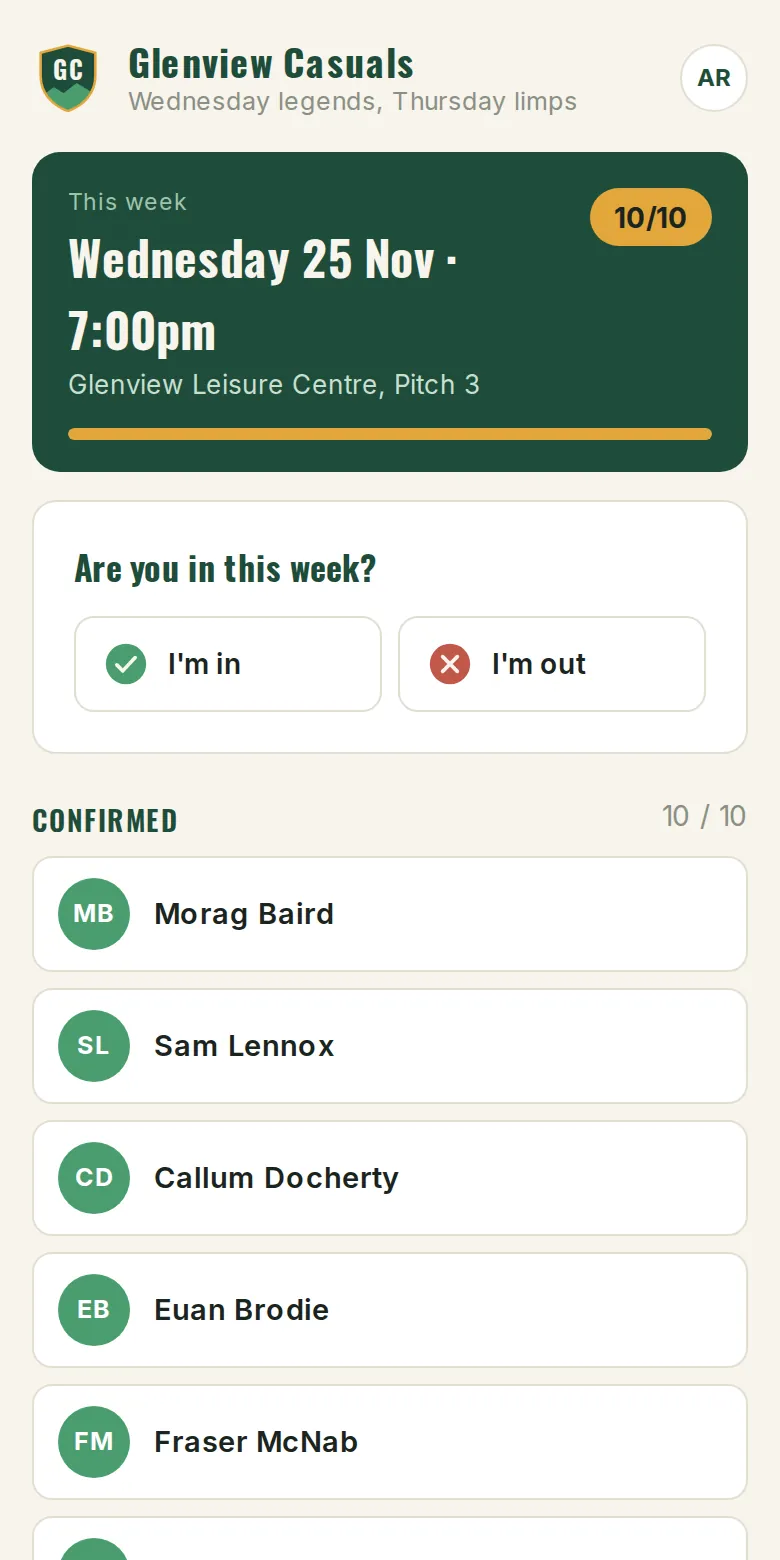
Ali's screen: under the game details, a card asks Are you in this week? with I'm in and I'm out buttons, and the confirmed list below.
Are you in?Anyone who hasn't replied is asked straight away. One tap either way.
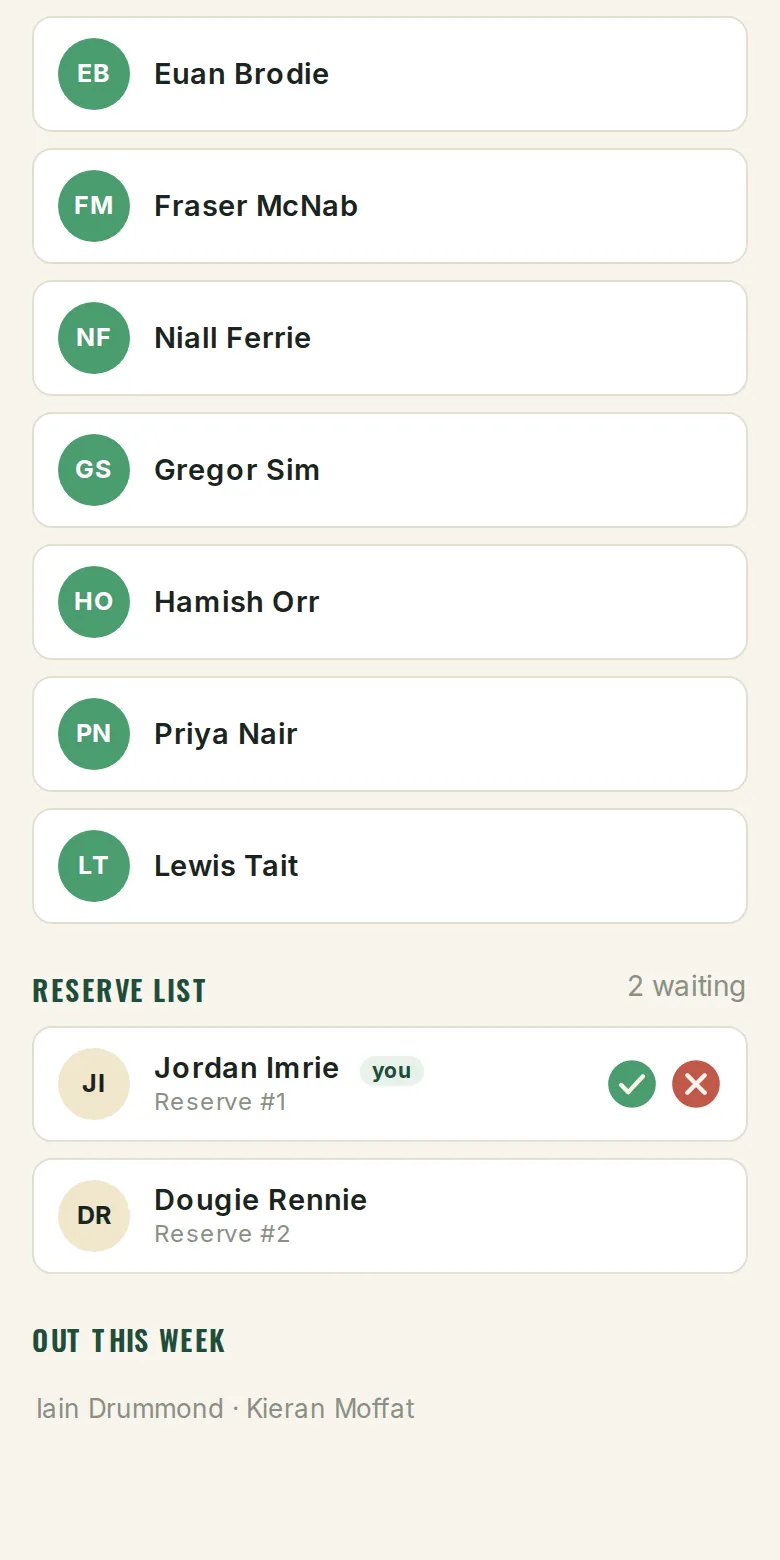
Jordan's screen scrolled to the reserve list: Jordan Imrie, marked as you, is Reserve #1 and Dougie Rennie is Reserve #2. Below, two players are listed as out this week.
On the reserve listWhen the game is full you join the reserve list and can see your place in the queue.
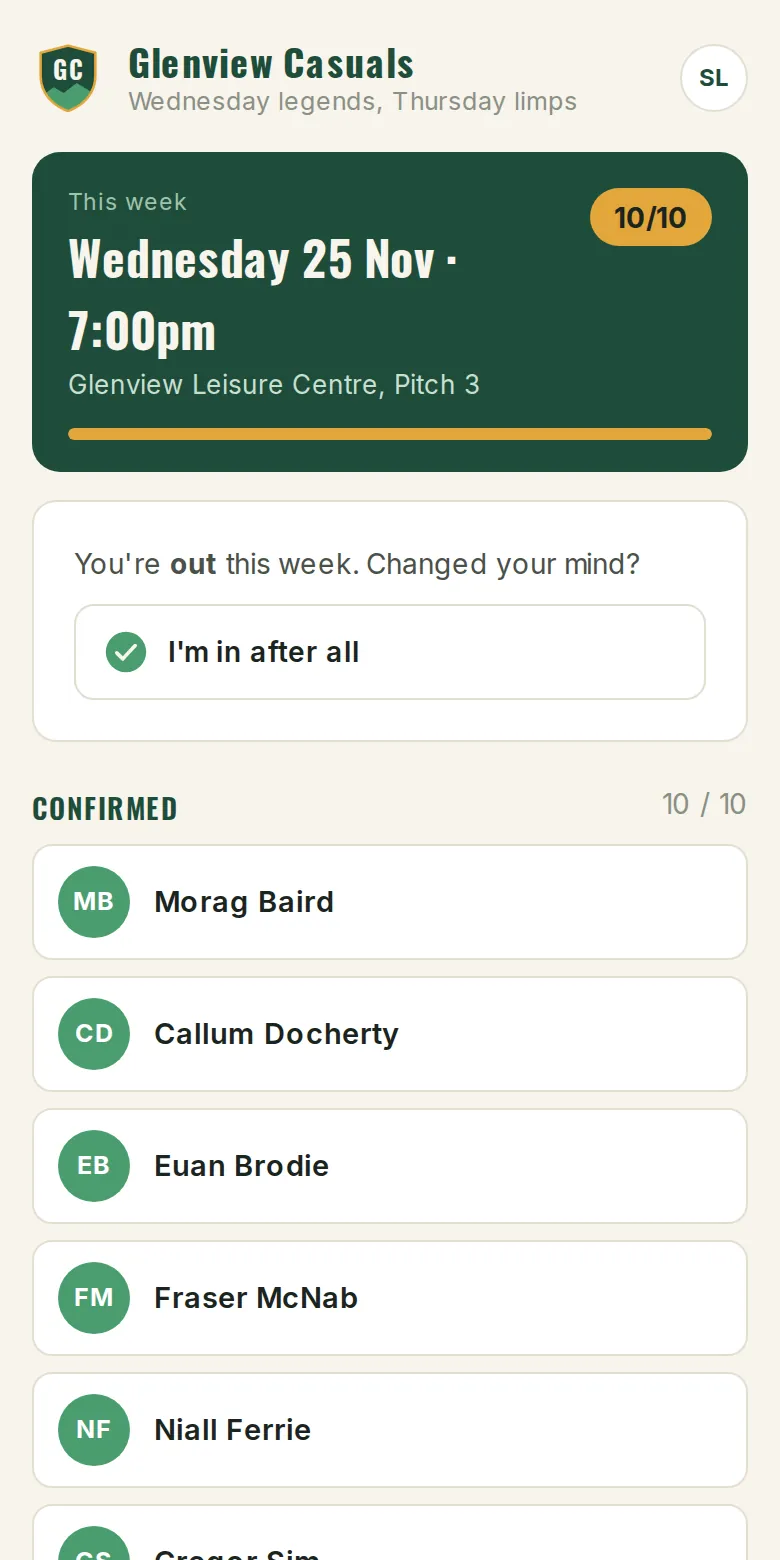
Sam's screen after dropping out: a card says You're out this week. Changed your mind? with an I'm in after all button. The game is still 10 of 10 because a reserve has taken the place.
Changed your mind?Dropping out frees your place for the next reserve. If you can make it after all, one tap puts you back in, or on the reserve list if the game has filled.

The tour · organisers

What organisers see

The same screen with a few extra tools. Organisers can run everything from their phone or from a computer, and there can be more than one.

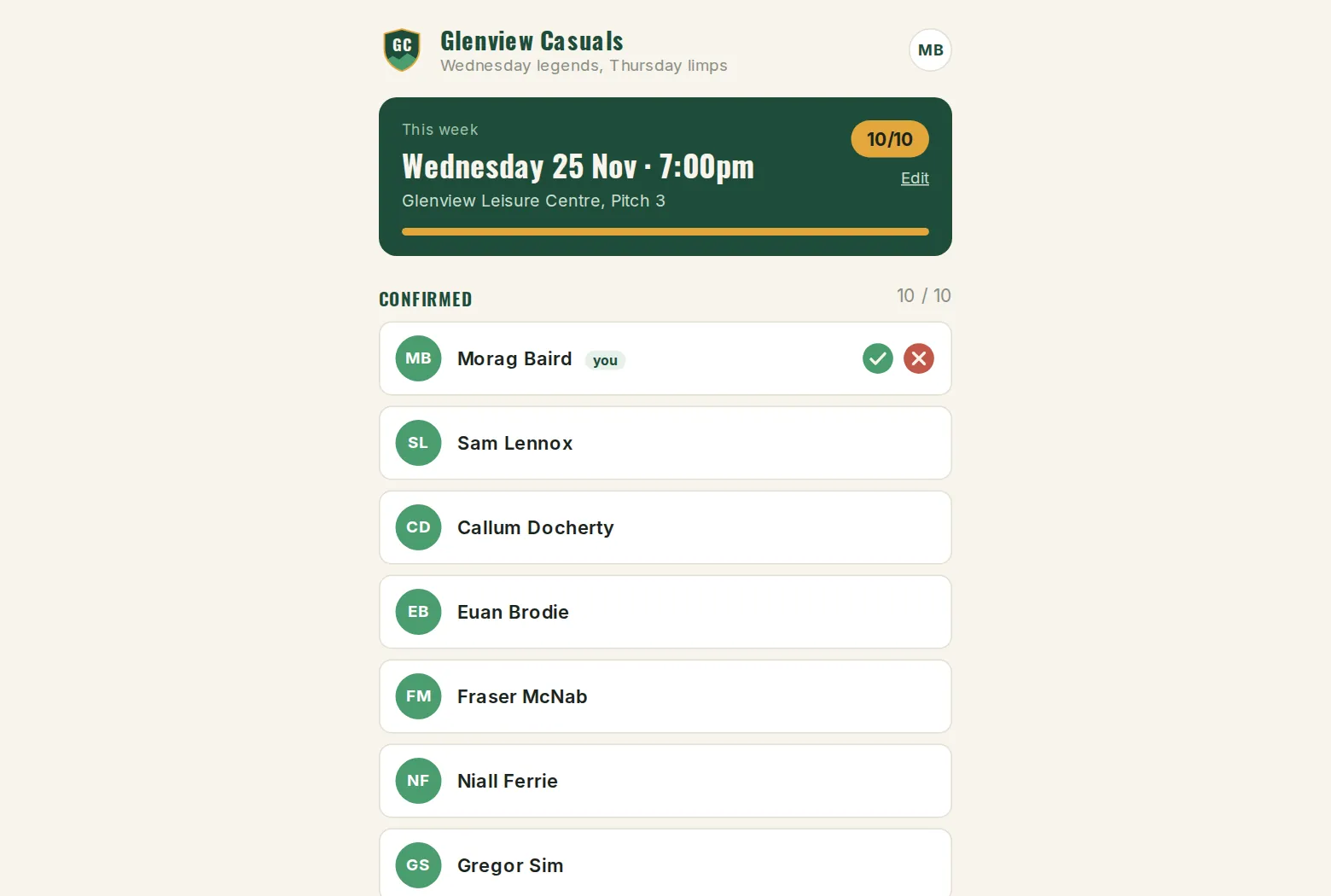
The organiser's screen in a web browser on a computer: the club name, this week's game with an Edit link and a 10 of 10 counter, and the confirmed list with Morag Baird marked as you.
On a computerThe same app in any browser, with nothing to install.
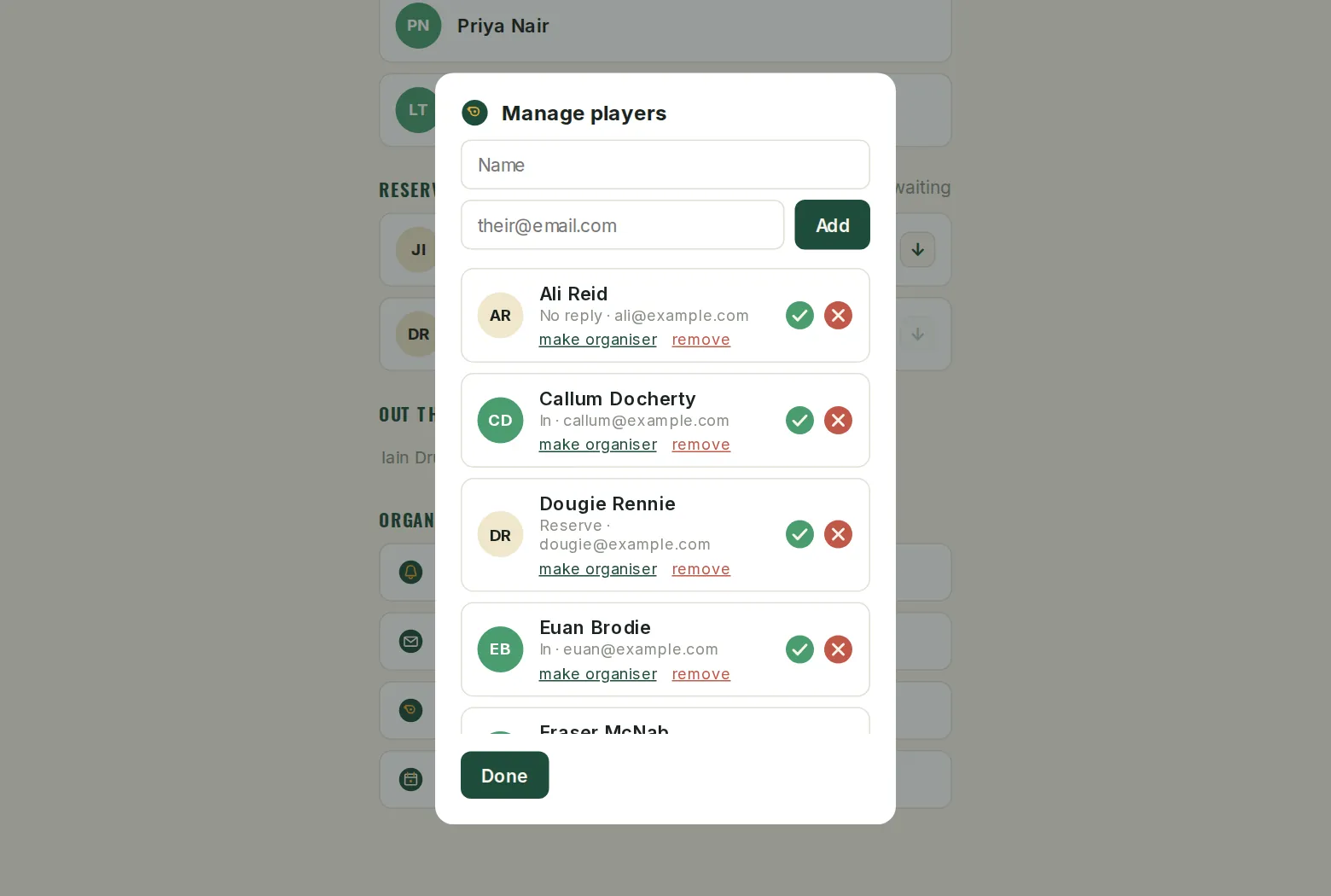
The Manage players window: boxes to add a player's name and email, then each player with whether they've replied, their email, links to make them an organiser or remove them, and in and out buttons.
Managing playersAdd people, mark someone in or out when they text instead, share the organiser role, or take someone off the list.
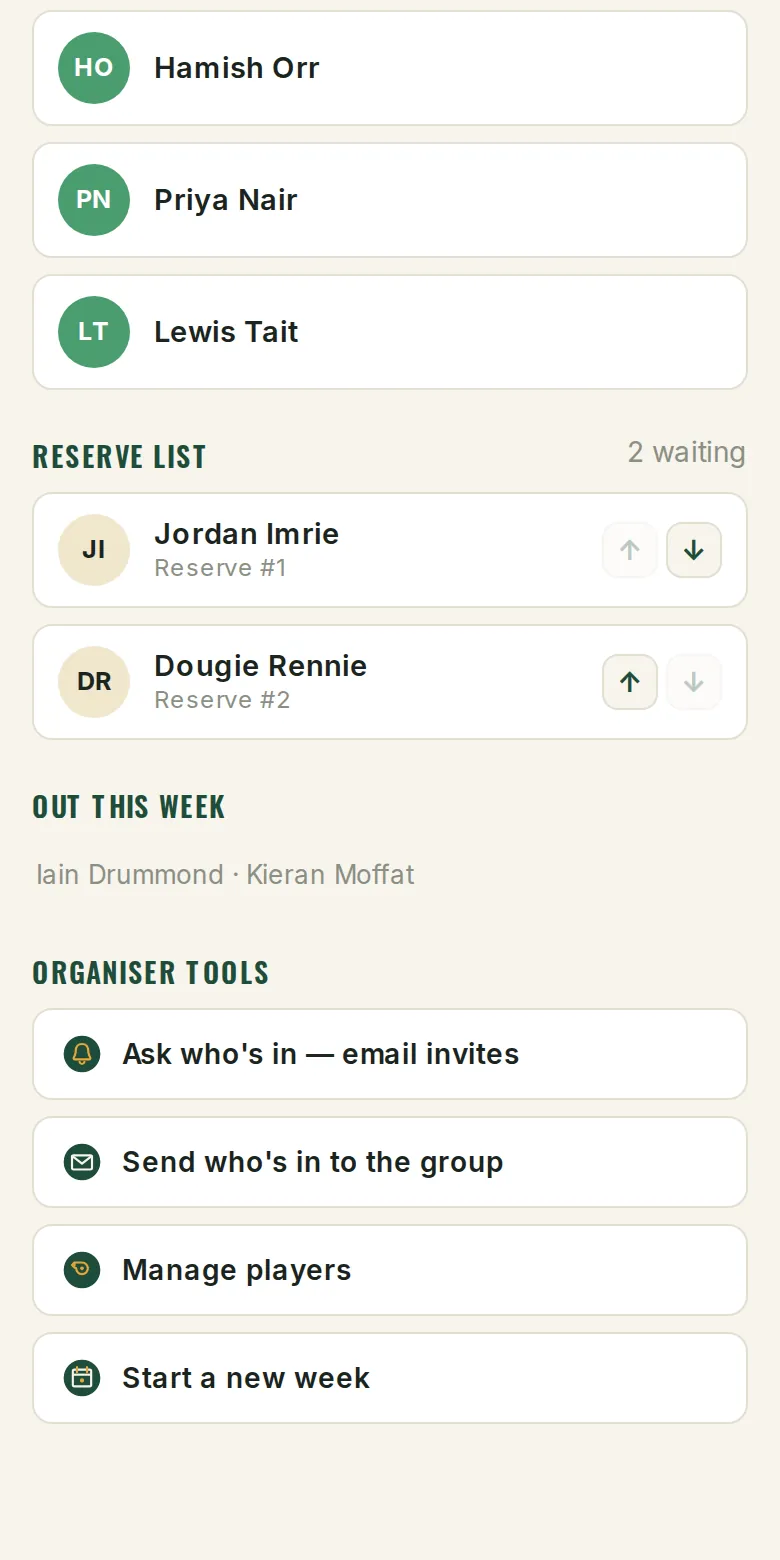
The bottom of the organiser's screen: the reserve list with up and down arrows on each reserve, the players who are out, and four organiser tools: Ask who's in by email invites, Send who's in to the group, Manage players, and Start a new week.
Organiser toolsArrows to reorder the reserve list, and everything else for the week in four buttons.

What an organiser can do

  • Change the date, time, place and number of places
  • Mark anyone in or out on their behalf
  • Reorder the reserve list
  • Email invites to anyone who hasn't replied
  • Send everyone the final list
  • Start next week's game, same time and place, with everyone's replies cleared
  • Add and remove players, and make others organisers

The tour · in detail

Key features

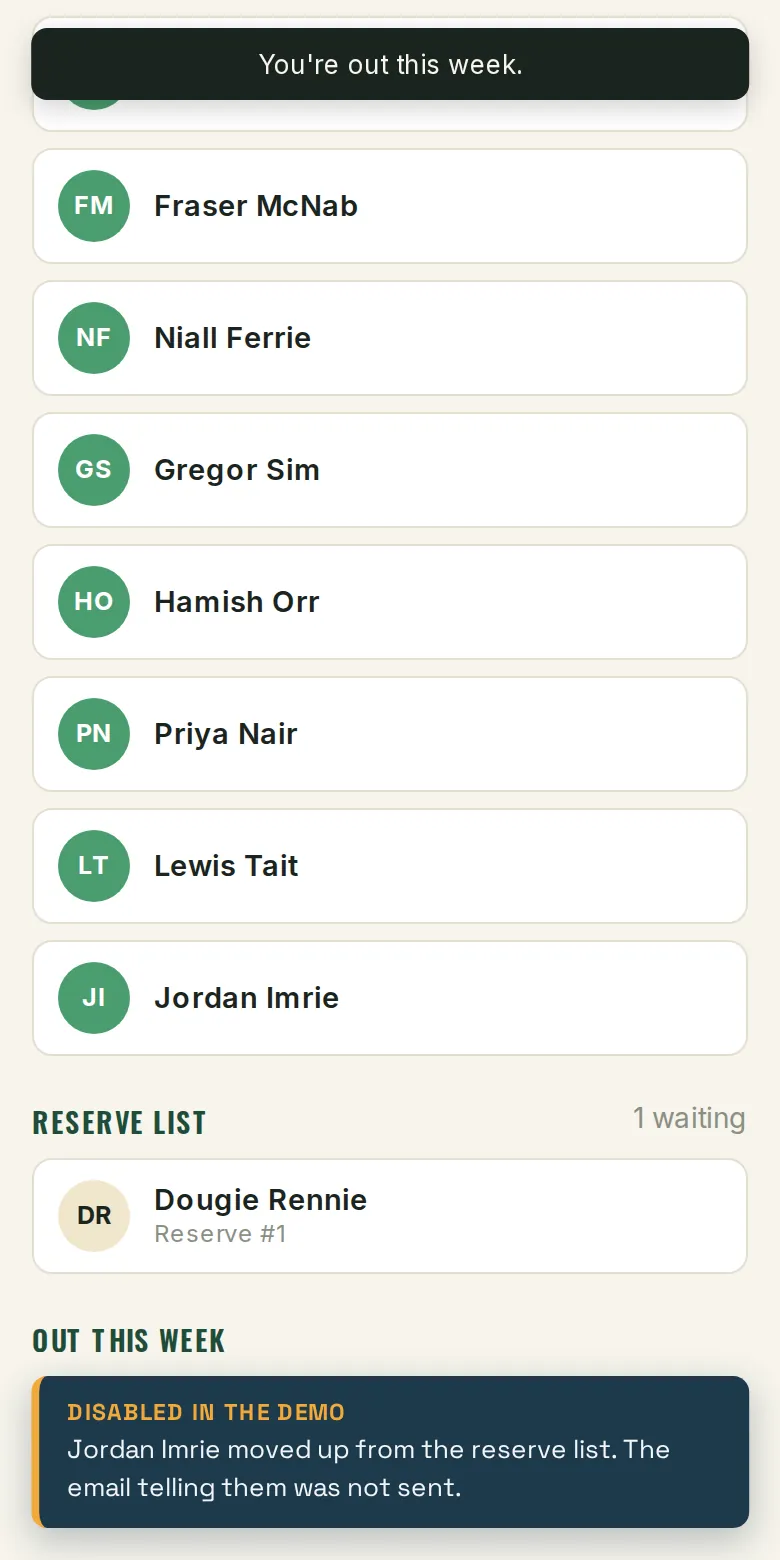
Sam has just dropped out. A message at the top says You're out this week. Jordan Imrie now appears at the end of the confirmed list, Dougie Rennie has become Reserve #1, and a note at the bottom says Jordan moved up from the reserve list and that, in the demo, the email telling them was not sent.

The reserve list runs itself

Places go in the order people reply. Once the game is full, new replies join the reserve list. When a confirmed player drops out, the first reserve takes the place straight away and gets an email with buttons to confirm it or pass it on. If they pass, it goes to the next person.

In the demo no email is sent. A note at the bottom of the screen says what would have happened.
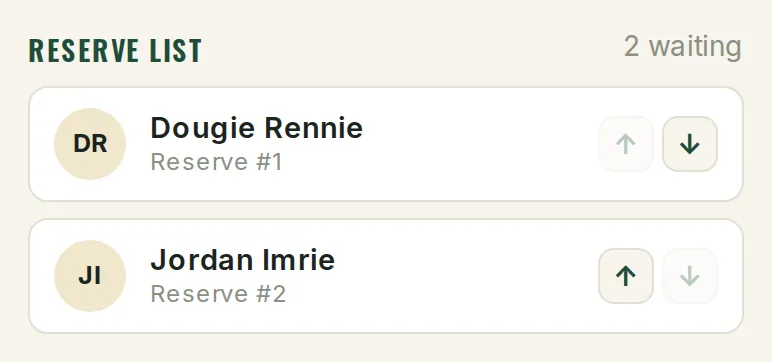
A close-up of the reserve list as the organiser sees it: Dougie Rennie is Reserve #1 and Jordan Imrie Reserve #2, each with up and down arrows.

Fair, with the organiser in charge

The reserve list is first come, first served, and anyone who drops out and comes back joins the end of it. The organiser can still move people up or down: for a regular who missed the message, say.

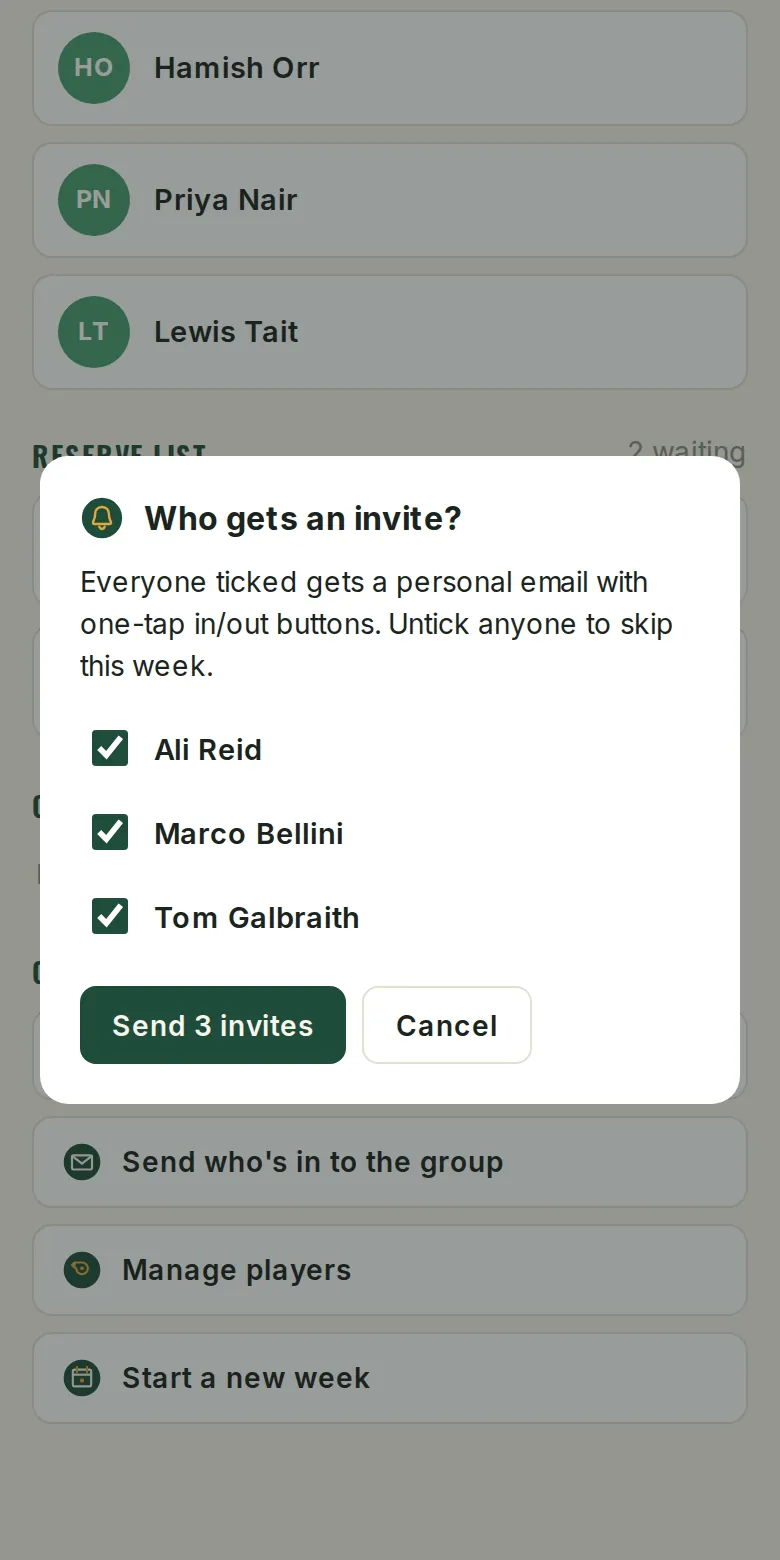
A window titled Who gets an invite? explains that everyone ticked gets a personal email with one-tap in and out buttons. Ali Reid, Marco Bellini and Tom Galbraith are ticked, with Send 3 invites and Cancel buttons.

Replies straight from email

The organiser ticks who to ask, and each person gets their own email with ‘I’m in’ and ‘Can’t make it’ buttons. One tap answers, without signing in. Sent midweek, it doubles as a nudge for anyone who hasn't replied.

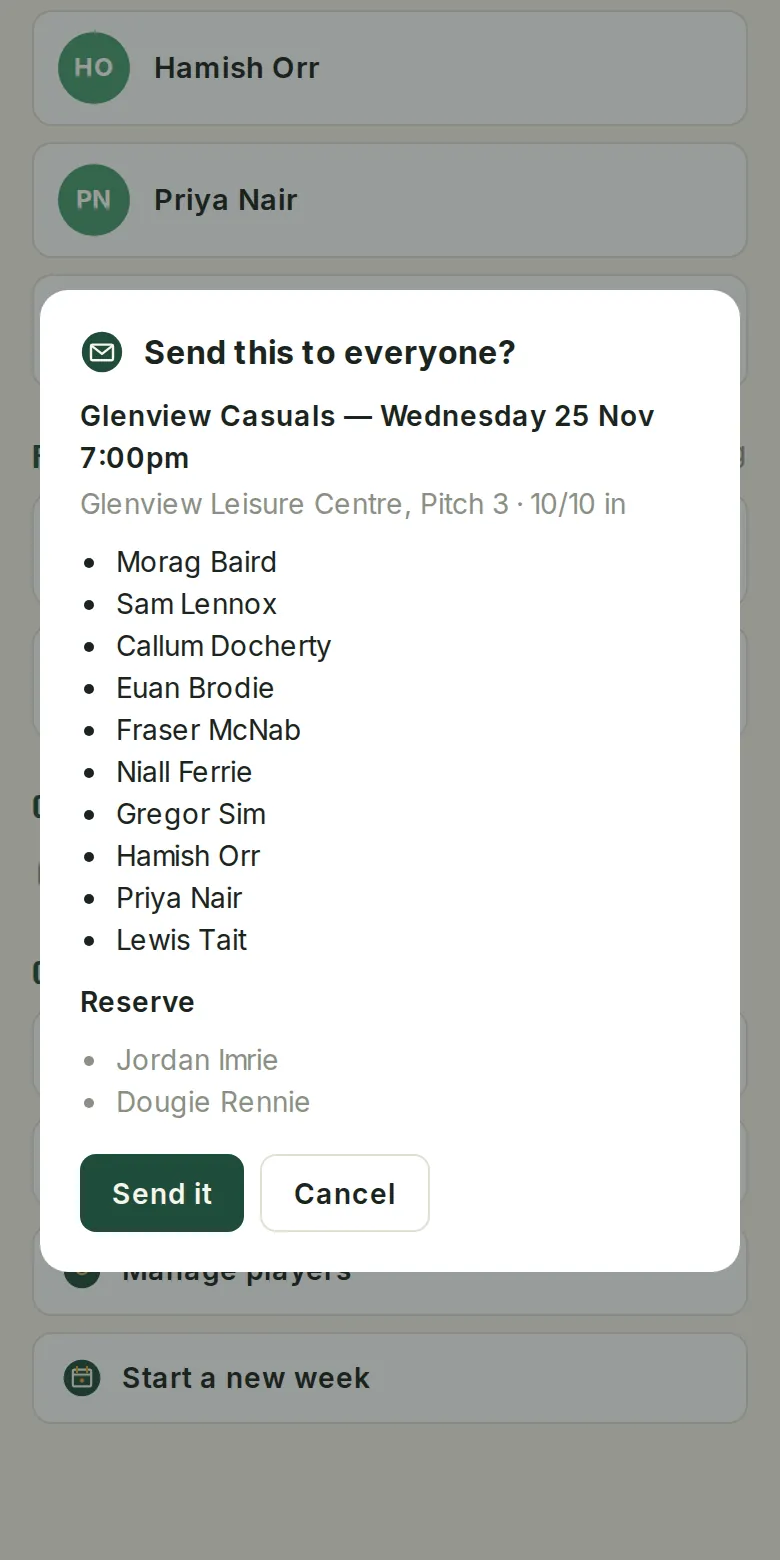
A window titled Send this to everyone? previews the email: the club, the game's day, time and place, 10 of 10 in, the ten confirmed players and the two reserves, with Send it and Cancel buttons.

Everyone gets the final list

One tap emails the whole group who's playing and who's on the reserve list, so nobody has to ask on the day. Email addresses stay private: everyone is copied in blind.

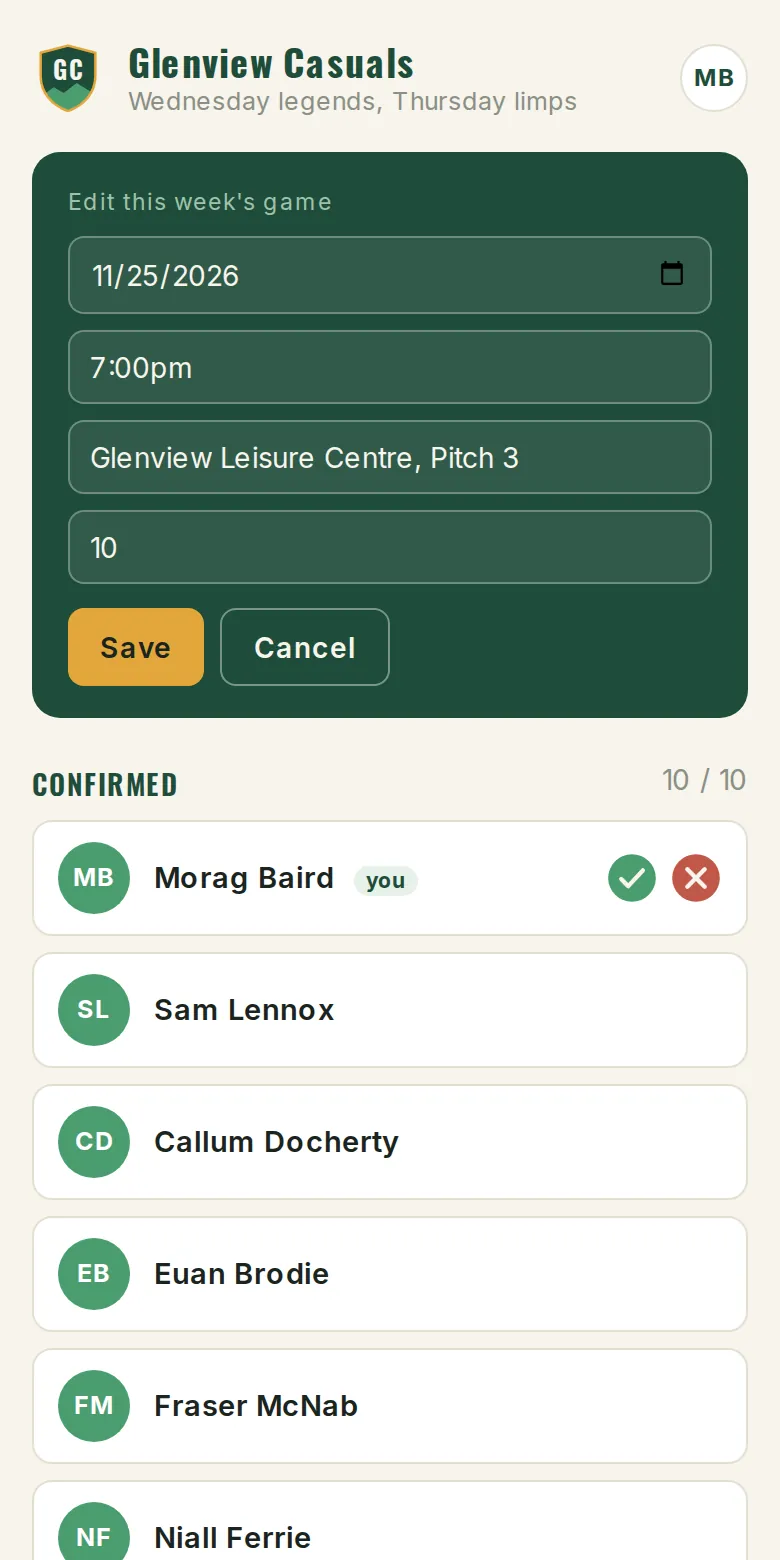
The game card switched to editing: boxes for the date, the time 7:00pm, the place Glenview Leisure Centre, Pitch 3, and 10 places, with Save and Cancel buttons.

Change the game in seconds

Moved to a different pitch, or booked a bigger one? Change the date, time, place or number of places. Add places and the people at the top of the reserve list move up to fill them, and they're told.

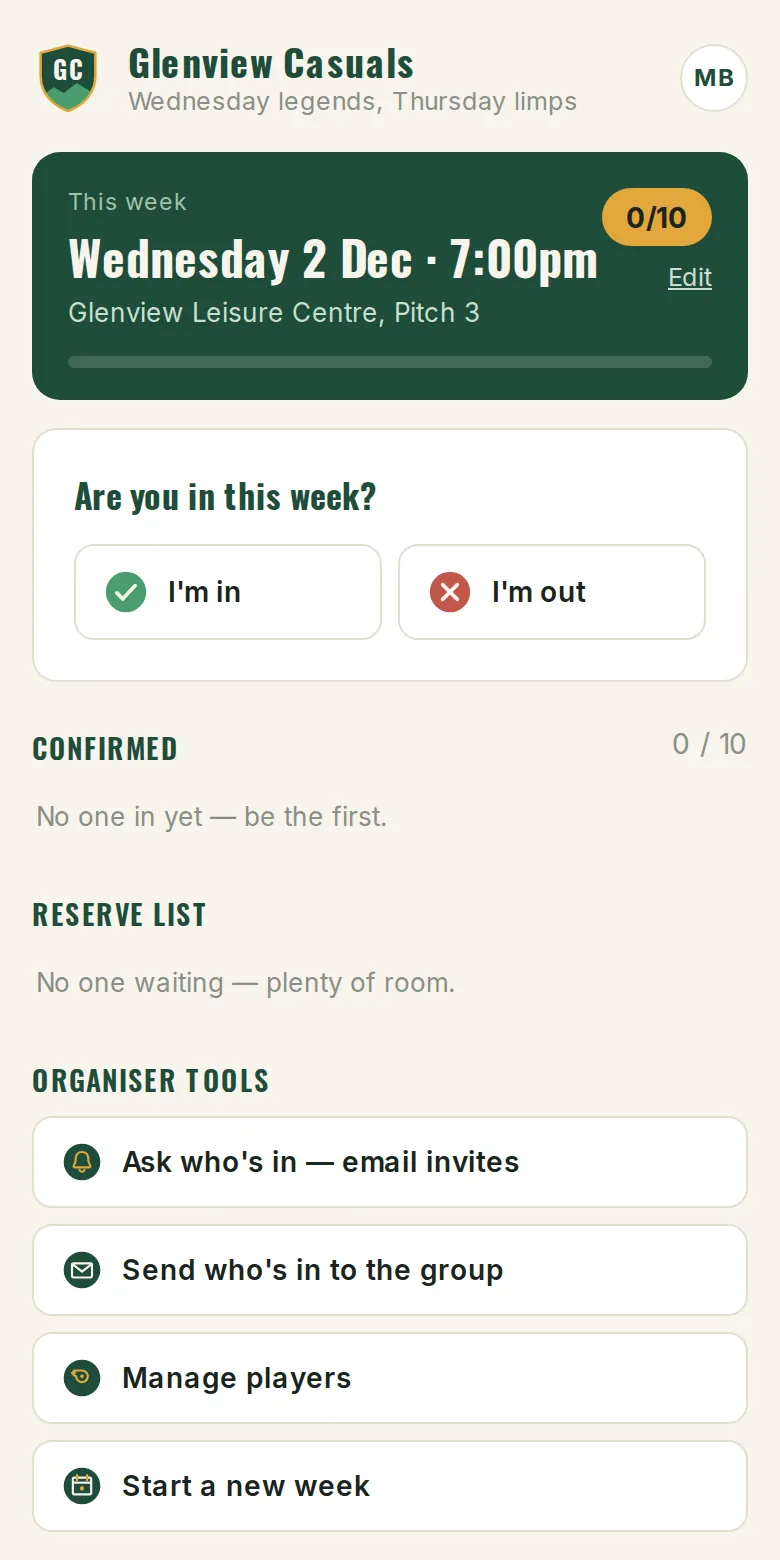
Next week's game set up: 0 of 10 places filled, a card asking Are you in this week?, nobody confirmed or waiting yet, and the organiser tools below.

A new week in one tap

After the game, start next week's. It keeps the same time, place and size, moves the date on a week and clears everyone's replies.

Want one for your organisation?

Kickabout was built by Blewis. If you run a weekly game, a club, or anything with a limited number of places, it can be set up with your name and colours, or shaped around the way you do things.

Email hello@blewis.co.uk